

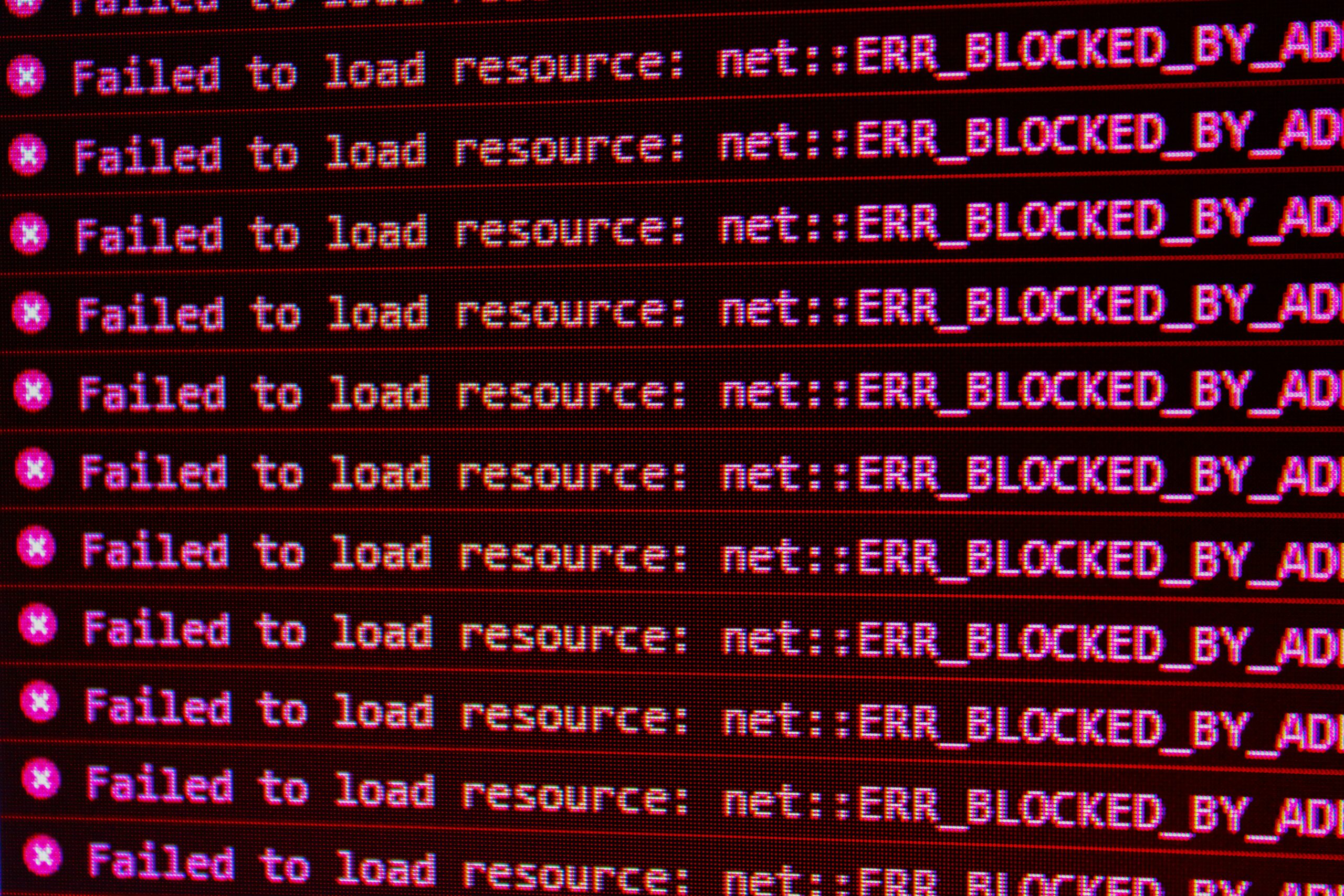
Error solutions are essential when your phone, computer, apps, or internet stop working properly. In today’s fast-moving digital world, even a small technical issue can interrupt your work, studies, communication, or entertainment. Whether you’re facing app crashes, slow performance, system errors, or network problems, knowing how to troubleshoot can save both time and money.
This detailed guide will help you understand practical and beginner-friendly ways to fix common issues without requiring advanced technical knowledge. If you want to explore deeper Windows-level fixes, you can also read this helpful external guide: Microsoft Windows Support.
Learning basic troubleshooting is a powerful skill. Most problems are not serious and can be solved using simple techniques like restarting your device, updating software, clearing cache, or checking settings. Let’s explore different types of problems and their effective solutions.
⚠️ Error Solutions for App Problems
Apps are an important part of our daily life. From social media to banking, everything depends on apps working smoothly. However, apps may sometimes crash, freeze, or fail to open. These issues are usually caused by outdated versions, corrupted cache, or lack of storage space.
Here are some proven error solutions to fix app-related problems:
- Clear App Cache and Data: Temporary files can sometimes get corrupted. Clearing cache helps remove unnecessary files and improves performance.
- Update the App: Developers regularly release updates to fix bugs. Always keep your apps updated.
- Reinstall the App: If the issue persists, uninstall and reinstall the app to reset it completely.
- Check Storage Space: Low storage can prevent apps from working properly.
- Force Stop and Restart: Force stopping the app and reopening it can resolve temporary glitches.
For more in-depth understanding of mobile troubleshooting, you can check this external resource: How to Fix Android Apps Crashing.
Additionally, always make sure that your device meets the minimum requirements of the app. Running heavy apps on low-end devices often causes lag and crashes.
💻 Error Solutions for PC / Windows
Computers are widely used for work, gaming, and productivity. However, Windows systems can sometimes slow down or show errors like system crashes, blue screen errors, or software not responding.
Here are some effective error solutions for Windows and PC-related problems:
- Run Windows Troubleshooter: Windows provides built-in tools to detect and fix common issues automatically.
- Update Drivers: Outdated drivers can cause hardware and software conflicts.
- Restart Your Computer: A simple restart can fix temporary system glitches.
- Scan for Malware: Viruses and malware can slow down your system significantly.
- Free Up Disk Space: Remove unnecessary files to improve system performance.
- Check for Windows Updates: Keeping your system updated ensures better security and performance.
You can also explore detailed troubleshooting steps from this trusted guide: How to Fix Common Windows Errors.
Another important tip is to avoid installing unnecessary software. Too many background programs can consume RAM and slow down your PC.
📱 Error Solutions for Mobile Issues
Smartphones are essential in our daily lives, but they can also face issues like slow performance, overheating, battery drain, or network problems. These issues are usually caused by heavy apps, outdated software, or poor maintenance.
Follow these error solutions to fix mobile-related problems:
- Delete Unused Apps: Removing unnecessary apps frees up storage and improves speed.
- Restart Your Device: Restarting refreshes system processes and fixes minor bugs.
- Update Software: Always keep your operating system updated.
- Clear Cache: Especially for heavy apps like browsers and social media.
- Use Lite Apps: Lite versions consume less memory and run faster on low-end devices.
For more expert advice, check this guide: Common Android Problems and Fixes.
Also, avoid overcharging your phone and keep it away from excessive heat, as these factors can affect performance and battery health.
🌐 Error Solutions for Internet Issues
Internet problems are among the most common issues users face today. Slow speeds, connection drops, or no internet access can disrupt work and entertainment.
Here are simple error solutions for fixing internet issues:
- Restart Router: Turning your router off and on refreshes the connection.
- Toggle Airplane Mode: Turning it ON and OFF can reset network connections.
- Reset Network Settings: This removes incorrect configurations.
- Switch Networks: Try switching between Wi-Fi and mobile data.
- Check ISP Issues: Sometimes the issue is from your service provider.
You can also learn more from this guide: How to Fix Slow Internet.
For better performance, place your router in an open area and avoid physical obstructions like walls or metal objects.
🔧 Advanced Troubleshooting Tips
If basic methods don’t solve your problem, you can try these advanced error solutions:
- Boot your system in Safe Mode
- Perform a factory reset (only if necessary)
- Check hardware issues like RAM or storage
- Use diagnostic tools
- Consult professional support if required
Always back up your data before performing advanced fixes like resetting your device.
🎥 Video Guide: Fix Common Tech Errors Easily
Watch this helpful video tutorial to understand how to fix common technical problems step-by-step:
🚀 Final Tips for Preventing Errors
Prevention is always better than cure. By following simple maintenance habits, you can avoid most technical issues:
- Keep your software and apps updated
- Regularly restart your devices
- Install apps only from trusted sources
- Use antivirus protection
- Clean unnecessary files regularly
Most error solutions start with simple steps like restarting or updating. These basic actions can fix up to 80% of common issues without requiring expert help.
By understanding and applying these techniques, you can handle everyday tech problems confidently and keep your devices running smoothly.
nice
Thanks for your support
great article thsnks for sharing
Thanks for your support
Thanks for your support
Thanks for your support